How to configure your OneDesk app appearance
Want to configure the appearance of your OneDesk app to fit your company or preferences? Premium and Enterprise members of OneDesk can now White Label their web application via the Style tab in Company Preferences. To access this feature, navigate to Administration > Company Prefs. > Style.
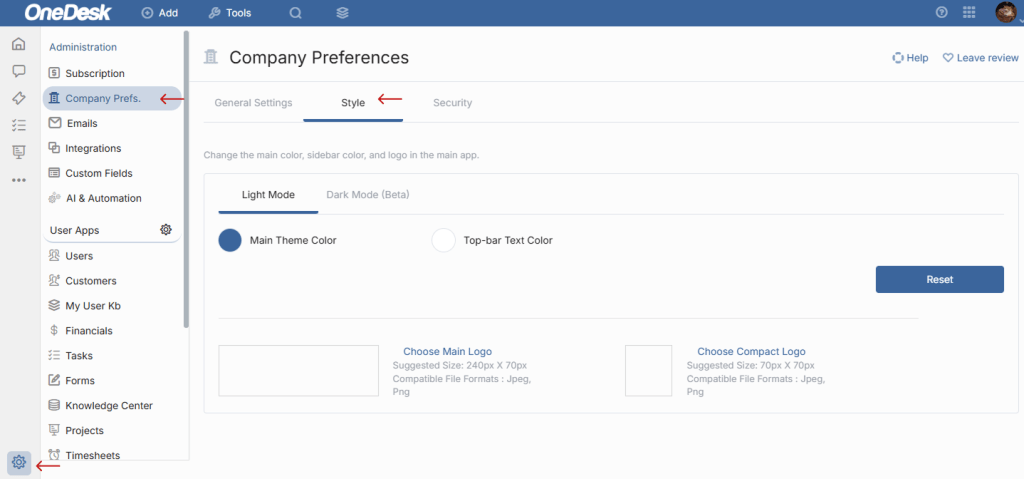
Here you can change the colors as well as the logo that appears for users of your OneDesk account.
To reset the logo to the default OneDesk logo or to remove and replace the file, simply click on the image field next to the “Choose” button.
You can choose from the provided color swatches for your White Labeling, or you can insert the hexadecimal code for a custom color. It is always possible to reset the Style color settings to the OneDesk default by clicking “Reset” on the right side of the page.
Learn more about Company Preferences here.